
How to Turn Off Data Roaming on iPhone and Android
Exact steps for iPhone, Samsung and Pixel, how to check it worked, what still works once roaming is off, and the extra safeguards dual-SIM travelers need.
Quick answer
- Turning off Data Roaming stops mobile data on foreign networks; Wi-Fi keeps working.
- On iPhone it's under Settings → Cellular → Cellular Data Options; on most Android phones it's under your mobile network settings.
- On dual-SIM phones the setting is per line — turn it off on your home line and on for a travel eSIM if it needs it.
- Calls and texts can still roam with data roaming off, and may be charged. Airplane mode with Wi-Fi on blocks everything else.
Quick answer: where to find the setting
Turn off Data Roaming before you land, on every line where roaming isn't included in your plan. Here's where the switch lives:
| Phone | Path |
|---|---|
| iPhone | Settings → Cellular → Cellular Data Options → Data Roaming |
| Samsung Galaxy | Settings → Connections → Mobile networks → Data roaming |
| Google Pixel | Settings → Network & internet → SIMs → your SIM → Roaming |
| Other Android | Search for "roaming" in the Settings app |
Menu names vary slightly by software version, language and region. Not sure what the setting actually does? Read what data roaming means on your phone first.
How to turn off data roaming on iPhone
- Open Settings.
- Tap Cellular (or Mobile Data / Mobile Service in some regions).
- If you have more than one line, tap the line you want to change, such as your home SIM.
- Tap Cellular Data Options (or Mobile Data Options).
- Switch Data Roaming off.
On an iPhone with two lines, each line has its own Data Roaming switch. That lets you keep roaming off on your home SIM while a travel eSIM handles your data.
How to turn off data roaming on Samsung Galaxy
- Open Settings.
- Tap Connections.
- Tap Mobile networks.
- Switch Data roaming off.
On dual-SIM Samsung phones, the setting may apply to the SIM currently used for mobile data. Choose the right SIM in SIM manager first.
How to turn off data roaming on Google Pixel
- Open Settings.
- Tap Network & internet.
- Tap SIMs, then choose your SIM.
- Switch Roaming off.
Other Android phones
Look under Settings → Connections, Settings → Mobile network or Settings → Network & internet, then find Data roaming or Roaming. If you can't find it, search for "roaming" in the Settings app.
How to check that it worked
- Open a website with Wi-Fi off once you're abroad. It shouldn't load over your home line.
- Look at your mobile data counter. Reset it before you travel, then check that it isn't increasing on your home line.
- Read your carrier's welcome text. Some carriers confirm whether data is blocked or which pass is active.
- Check again after software updates or a SIM change, which can reset network settings.
What still works when data roaming is off
| Feature | Works with data roaming off? |
|---|---|
| Wi-Fi internet | Yes |
| Mobile data on foreign networks | No |
| Calls and SMS on your home number | Usually yes — and may be charged as roaming |
| Mobile data from a travel eSIM | Yes, if roaming is on for the eSIM line |
| Emergency calls | Yes |
| GPS location | Yes — offline maps still show your position |
Data roaming off vs mobile data off vs airplane mode
| Setting | Blocks roaming data | Blocks all mobile data | Blocks calls and texts | Wi-Fi still works |
|---|---|---|---|---|
| Data Roaming off | Yes | No — data still works at home | No | Yes |
| Mobile data off | Yes | Yes | No | Yes |
| Airplane mode + Wi-Fi on | Yes | Yes | Yes | Yes |
If you only want Wi-Fi, airplane mode with Wi-Fi switched back on is the most complete option. The difference between the first two switches is explained in data roaming vs mobile data, and data roaming vs Wi-Fi helps you decide when Wi-Fi is enough.
Using a travel eSIM with roaming off on your home line
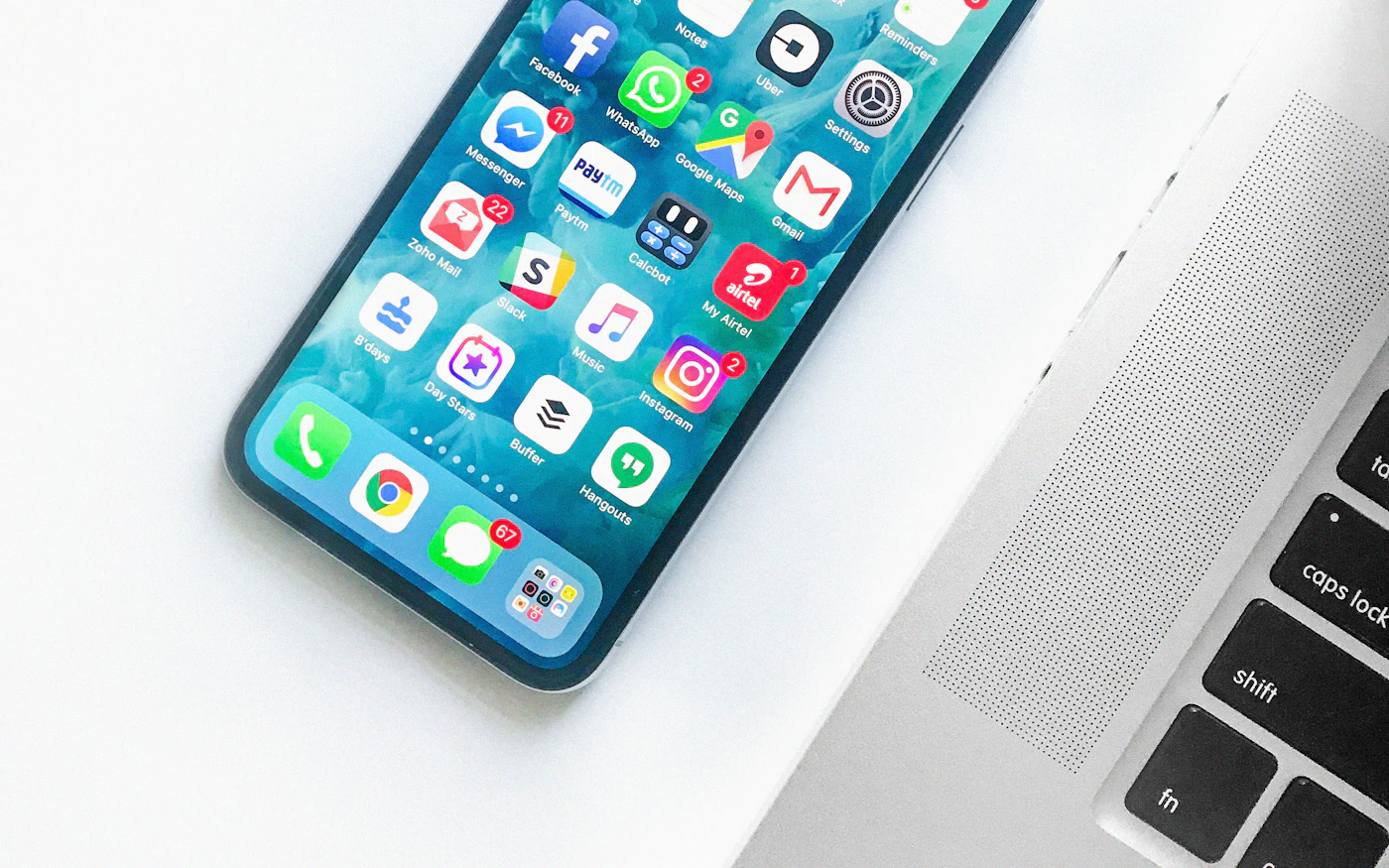
On a dual-SIM phone, you can keep your number for calls and texts while a travel eSIM provides data:
- Home SIM: Data Roaming off.
- Travel eSIM: set as your mobile data line, with Data Roaming on if the provider asks — most do.
- Data switching: turn off Allow Cellular Data Switching (iPhone) or similar options on Android.
That last point matters more than it sounds.
Data switching on dual-SIM phones
Some phones can automatically use your other line for data if the selected line has a weak signal. If your home line is the other line, this can lead to roaming charges. Turn that option off when traveling.
Our guides to using an eSIM for international travel and eSIM roaming walk through the setup and explain why eSIMs need roaming switched on.
Extra safeguards
- Turn off automatic backups and app updates on mobile data.
- Turn on Low Data Mode (iPhone) or Data Saver (Android) to reduce background use if you do roam.
- Download offline maps for your destination before you leave.
- Check your carrier's app for usage alerts and spending limits.
The full list of settings is in our checklist for avoiding roaming charges.
When to turn data roaming off — and when to leave it on
- Turn it off on any line where roaming isn't included or where you don't want roaming charges — especially with pay-per-use pricing.
- Leave it on if roaming is included in your plan for the country you're in, or for a travel eSIM line that needs it.
Ready to switch it back on? Follow how to turn on data roaming. To see what your carrier would charge, read data roaming charges explained.
Still charged after turning it off?
A few things can still show up on your bill:
- Calls and texts, which roam separately from data.
- Data used before you switched it off — on the plane after landing, for example.
- Usage on your other line through automatic data switching.
- Maritime or in-flight networks, which can be billed separately — see international data roaming.
- Delayed records from earlier in the trip, which can appear days later.
The bottom line
Turning off data roaming takes under a minute and is the simplest protection against surprise data charges. Do it before you land, check it worked, and decide how you'll get online instead: Wi-Fi, your carrier's travel pass, or a travel eSIM for your destination. For the bigger picture, see our complete guide to data roaming.
More questions? Browse our data roaming FAQ or all roaming and eSIM guides.
Frequently asked questions
What happens if I turn off data roaming?
Your phone stops using mobile data on foreign networks. Wi-Fi works as normal, and calls and texts can usually still be used — but may be charged as roaming.
Will turning off data roaming stop all charges?
It stops roaming data charges. Calls and texts can still incur roaming charges. Airplane mode with Wi-Fi on blocks all cellular use.
Should I turn off data roaming at home?
In most countries it makes little difference at home, because you're on your carrier's own network. Some carriers use domestic roaming in areas they don't cover, so leaving it on at home may be needed for coverage there.
Can I use a travel eSIM with data roaming off?
Keep data roaming off on your home line, but most travel eSIMs need data roaming turned on for the eSIM line itself, because they connect through partner networks.
Does turning off data roaming affect GPS?
No. GPS works without mobile data, so offline maps can still show your location. Online maps need Wi-Fi or another data connection to load new areas.
Next step
See all ways to avoid charges
Turning off data roaming is one step. See the full checklist for keeping your phone bill predictable abroad.
See all ways to avoid chargesData Roaming Editorial Team
We write practical, plain-English guides about using your phone abroad. Roaming prices and rules change, so we update guides regularly — always confirm current terms with your carrier. About our editorial approach

 USA
USA Dubai
Dubai Japan
Japan France eSIM
 Spain eSIM
 Italy eSIM
 UK eSIM
 Turkey eSIM