
eSIM Not Working Abroad? 9 Fixes That Usually Solve It
No Service, or signal but no internet? Nine quick fixes for a travel eSIM that won't connect, which settings to check first, and what to send support.
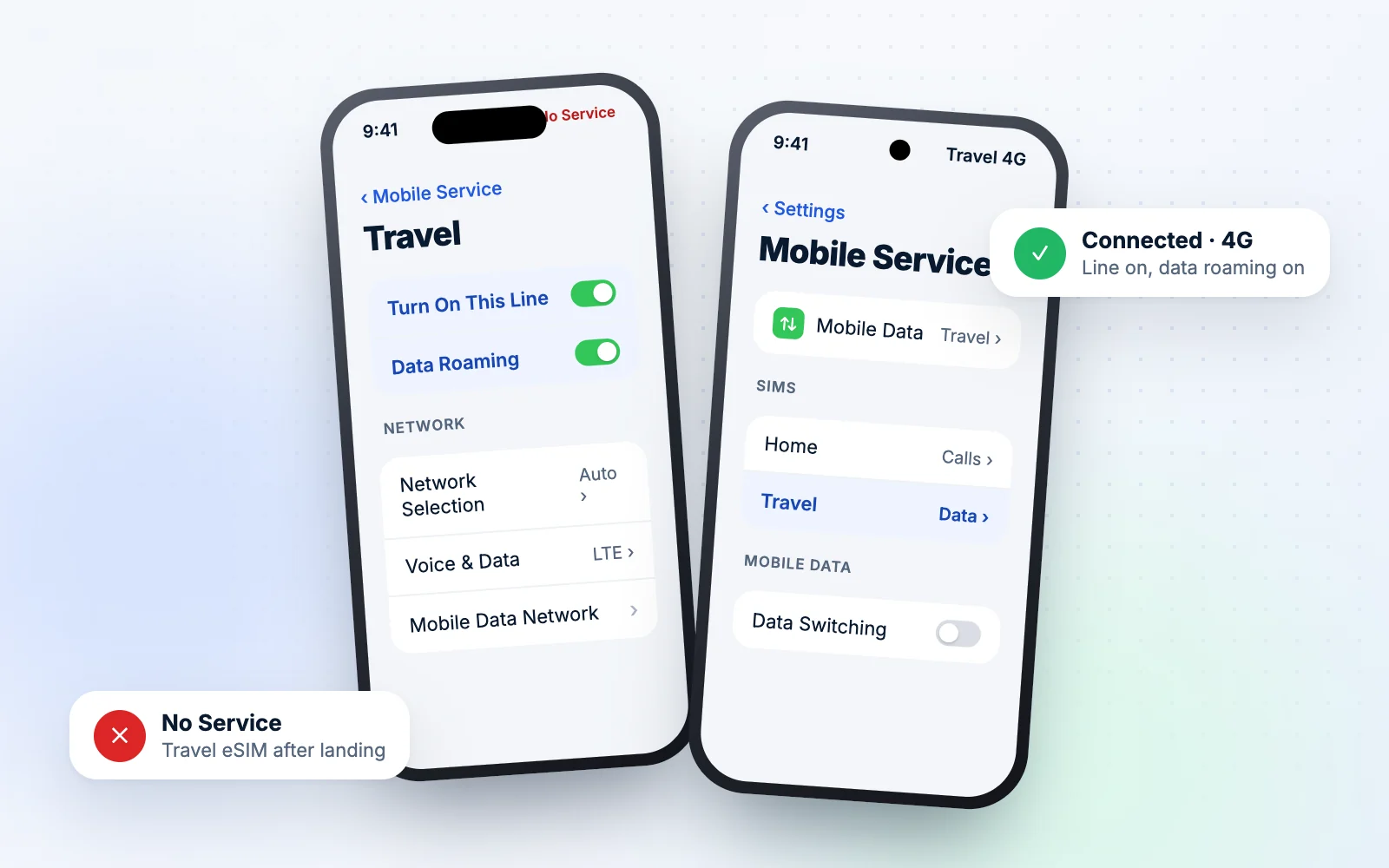
Quick answer
- Most problems come down to three settings: the eSIM line is on, it's your mobile data line, and data roaming is on for it.
- No signal before you arrive is normal: most travel eSIMs only connect in the countries they cover.
- Restarting, choosing a network manually or switching to 4G/LTE fixes many connection problems.
- Don't delete the eSIM to fix a problem: many can only be installed once.
You land, switch off airplane mode and wait for your travel eSIM to connect. Instead, the status bar says No Service, or you have signal bars but nothing loads. It's a frustrating start to a trip, but the eSIM itself is rarely the problem. In most cases one setting needs changing.
Work through these nine fixes in order. The first four solve most problems, and none of them takes more than a minute. If you can, connect to airport or hotel Wi-Fi first, so you can look things up or contact support if you need to.
First, What Are You Seeing?
The symptom points you to the most likely fixes:
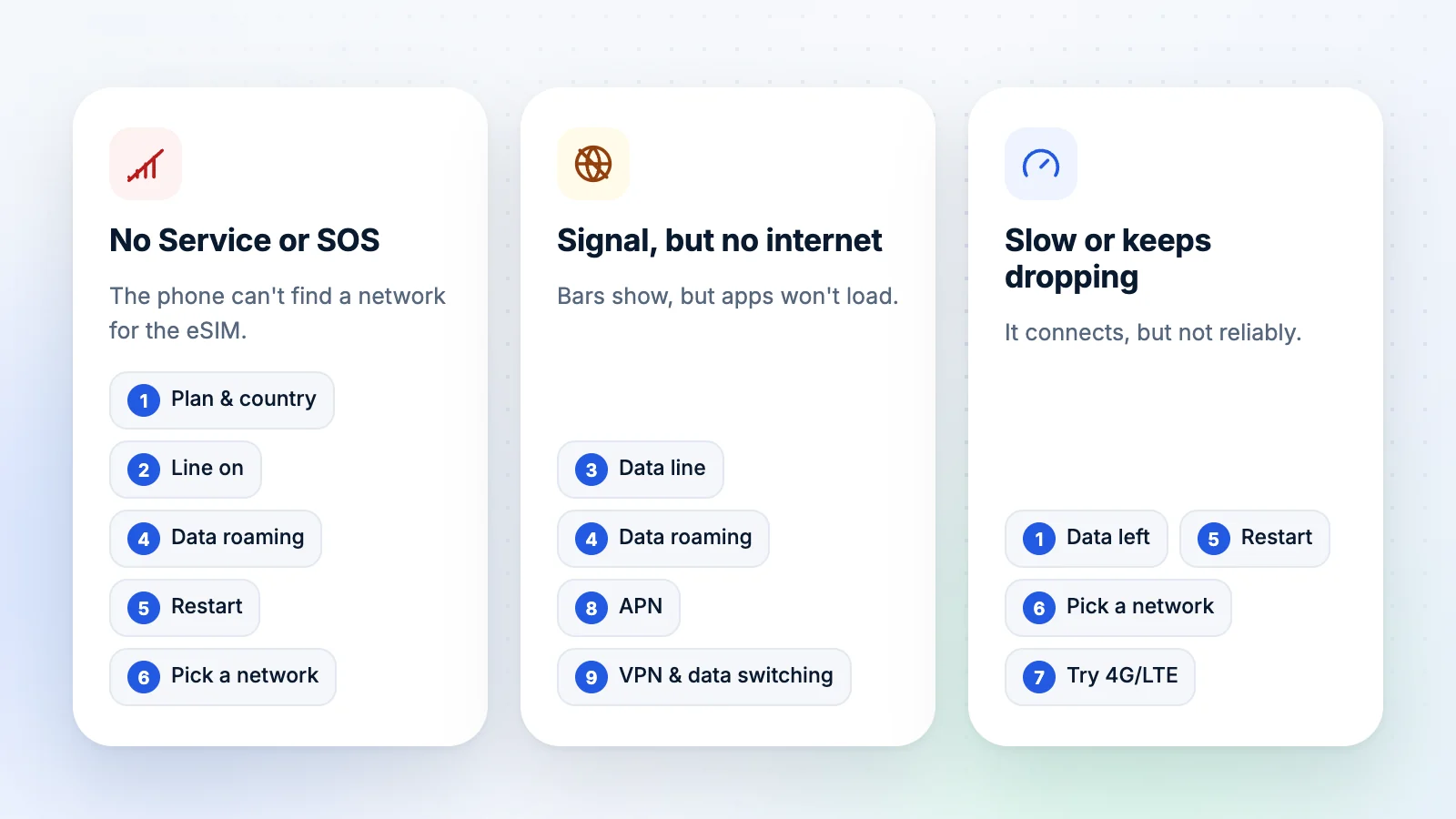
- No Service or SOS: the phone can't find a network for the eSIM. Start with fixes 1, 2, 4, 5 and 6.
- Signal bars, but no internet: the eSIM is connected, but your phone isn't using it for data. Start with fixes 3, 4, 8 and 9.
- Slow, or keeps dropping: it connects, but not reliably. Start with fixes 1, 5, 6 and 7.
1. Check the Plan Covers Where You Are, and Has Data Left
It sounds obvious, but it's the first thing support will ask:
- Is this country on the plan? Single-country plans only work in that country, and regional plans only in the countries they list. A plan for France won't connect in Switzerland, for example.
- Has the plan started? Some plans start when they first connect in the destination, others when you install them. If you installed months ago, check it hasn't expired.
- Is there data left? When the data runs out, most eSIMs stop connecting or slow right down. If you bought from us, the My eSIMs screen in our app shows how much you have left.
No signal before you arrive is normal: most travel eSIMs only connect in the countries they cover.
2. Make Sure the eSIM Line Is Turned On
Phones let you switch each SIM on and off, and a new eSIM isn't always switched on automatically.
- iPhone: Settings → Mobile Service (or Cellular) → tap the travel eSIM → turn on Turn On This Line.
- Android: Settings → Connections (or Network & internet) → SIM manager or SIMs → switch the eSIM on.
3. Set the eSIM as Your Mobile Data Line
If your home SIM is still the data line, your phone ignores the travel eSIM for internet, even with full signal on it.
- iPhone: Settings → Mobile Service → Mobile Data → choose the travel eSIM.
- Android: in the SIM manager, set Mobile data to the travel eSIM.
Keep your home SIM for calls and texts if you want to stay reachable on your normal number.
4. Turn On Data Roaming for the eSIM
This is the most common fix of all. Many travel eSIMs connect through partner networks in your destination, so your phone treats them as roaming. If data roaming is off for that line, the eSIM won't carry data.
- iPhone: Settings → Mobile Service → tap the travel eSIM → turn on Data Roaming.
- Android: open the eSIM's settings in the SIM manager (or Mobile networks) → turn on Roaming.
Turn data roaming on for the travel eSIM only, and leave it off for your home SIM. Our guide to turning on data roaming shows where the switch is on different phones.
Roaming on a travel eSIM doesn't cost extra
The data on a prepaid travel eSIM is already paid for, so turning on its roaming switch doesn't add charges. The home-SIM roaming switch is the one that can lead to a bill. Our article on eSIM roaming explains why.
5. Restart Your Phone, or Toggle Airplane Mode
A restart makes your phone search for networks from scratch, which clears up a surprising number of problems after a long flight. If you'd rather not restart, turn airplane mode on for about 30 seconds, then off again.
6. Choose a Network Manually
Your phone normally picks a network automatically, but it can get stuck trying one your plan doesn't use. Choosing one yourself often fixes it.
- iPhone: Settings → Mobile Service → tap the travel eSIM → Network Selection → turn off Automatic and wait for the list to load.
- Android: open the eSIM's settings → Network operators (or Mobile networks) → turn off Select automatically.
Pick one of the partner networks listed in your plan's details. If none is listed, try each available network for a minute. Once it works, you can switch back to Automatic.
7. Switch From 5G to 4G/LTE
Not every travel eSIM can use 5G on every partner network, and some phones keep reaching for a 5G signal they can't use. Forcing 4G often makes the connection steadier.
- iPhone: Settings → Mobile Service → tap the travel eSIM → Voice & Data → choose LTE (or 4G).
- Android: open the eSIM's settings → Preferred network type → choose 4G or LTE.

8. Check the APN Settings
The APN (Access Point Name) tells your phone how to reach the internet through the network. Most eSIMs set it automatically, but some need it entered by hand.
Only change it if your provider gives you an APN in your install details or emails. Enter it exactly as written:
- iPhone: Settings → Mobile Service → tap the travel eSIM → Mobile Data Network.
- Android: open the eSIM's settings → Access Point Names → add a new APN.
9. Turn Off VPN, Low Data Mode and Data Switching
Three settings can quietly get in the way:
- A VPN can block or slow the connection, especially right after you land. Turn it off, test the connection, then turn it back on if you need it.
- Low Data Mode (iPhone) or Data Saver (Android) pauses background data, so some apps look broken. Turn it off for the travel line to test.
- Mobile data switching lets the phone fall back to your home SIM when the eSIM signal is weak. On iPhone, turn off Allow Mobile Data Switching (or Cellular Data Switching) under Mobile Data. Some Android phones have a similar option.
Don't delete the eSIM to fix it
It's tempting to remove the eSIM and start again, but many eSIMs can only be installed once. Deleting it can leave you with nothing to reinstall. Try every fix above first, then contact your provider.
Still Not Working? What to Send Support
If none of the fixes worked, contact your eSIM provider. Sending these details up front gets you a faster answer:
- Your order number and the phone model and software version.
- Where you are (country and city) and when you arrived.
- What you see: No Service, signal without internet, or a slow connection.
- A screenshot of the eSIM's settings screen and the network name in your status bar, if one shows.
- What you've tried from the list above.
If you bought your eSIM from us, message us in the app under My eSIMs → Messages & support, or through our contact page. You'll need Wi-Fi to reach us if the eSIM isn't connecting.
Frequently asked questions
Why does my eSIM say No Service?
Usually because the eSIM line is switched off, data roaming is off for it, or you're not yet in a country the plan covers. Turn on the line and its data roaming, restart the phone, and if needed choose a network manually.
Why do I have signal but no internet on my eSIM?
Most often your phone is still using your home SIM for mobile data, or data roaming is off for the eSIM. Set the eSIM as your mobile data line, turn on its data roaming, and check for a VPN or an APN your provider asks you to enter.
Should I delete and reinstall my eSIM if it's not working?
No. Many eSIMs can only be installed once, so deleting one can leave you with nothing to reinstall. Try the fixes in this guide first, then contact your provider.
Will turning on data roaming cost me extra?
Not on a prepaid travel eSIM: its data is already paid for. Keep data roaming off on your home SIM, though, as that's the line that can lead to roaming charges.
Can I use my travel eSIM before I arrive?
Usually not. Most travel eSIMs only connect in the countries their plan covers, so No Service at home or in transit is normal. Check whether your plan starts on installation or when it first connects.
Next step
Contact support
Still not connecting? Send us your order number and what you see.
Contact supportData Roaming Editorial Team
We write practical, plain-English guides about using your phone abroad. Roaming prices and rules change, so we update guides regularly — always confirm current terms with your carrier. About our editorial approach
 Europe
 USA
 Japan
 France eSIM
 Spain eSIM
 Italy eSIM
 Dubai eSIM
 UK eSIM
 Turkey eSIM